Link Client App with Wallet
Note
This section requires you to execute commands.
With the ReactApp loaded in your Chrome browser, try to enter a value for the Value variable and click Save Storage Value button. This prompts MetaMask to connect to the ReactApp. It will show the following popped-up window.

Your window may not show 10 accounts if you have not previously imported them into MetaMask. In the window shown, MetaMask lists down all 10 accounts from Ganache. You can select which account you want to use to perform the Save Storage Value function. This account will have to pay gas to execute this function.
After selecting the accounts you can click Next.
In this example, I select all 10 accounts. Clicking Next will direct you
to the confirmation page as shown below:
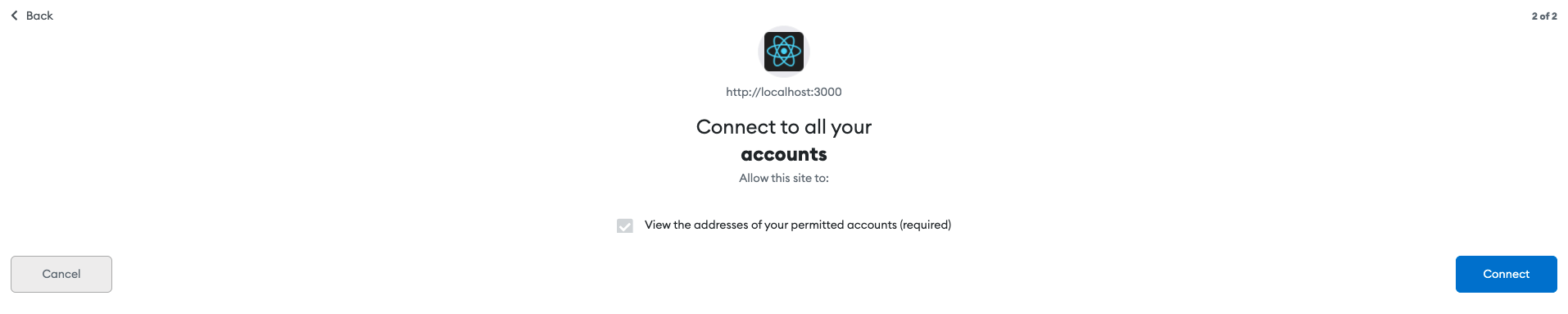
You can click Connect at the bottom right corner to connect MetaMask and ReactApp.
After connecting the ReactApp to MetaMask, on the app, you can see the value updated. Try changing the value a few more times to get a feel of how the client app, MetaMask, and the underlying Ganache blockchain work.