Connect Wallet to Blockchain
Note
This section requires you to execute commands.
With the blockchain running, we need to be able to interact with the blockchain. For instance, there must be a way for users to indicate how much ether to send in a blockchain transaction and a way for an account to confirm the transaction. We use MetaMask for this purpose. MetaMask serves as a browser-based wallet for blockchains. It connects your browser to local and remote blockchains.
Setting Up Metamask
Click the MetaMask icon in your browser. The following screen will appear:
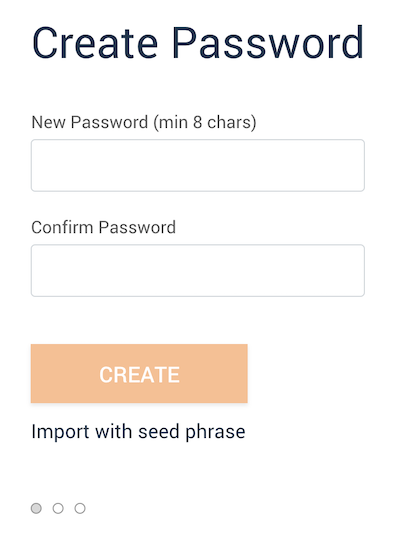
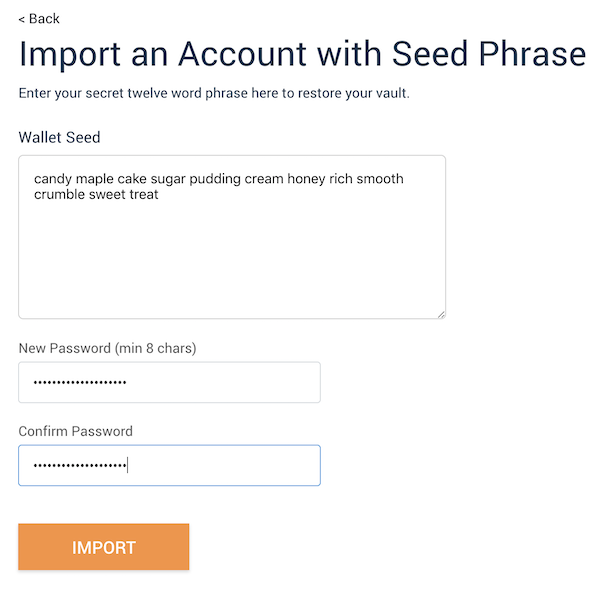
Click “Import with seed phrase”. In the box marked Wallet Seed, enter the Mnemonic displayed in the Ganache app. The seed phrase corresponds to a specific, already-running blockchain. Here it refers to the Ganache blockchain already up and running. Using different seed phrases, you can connect to different running blockchains.
After providing the seed phrase, create and confirm a new password and click IMPORT. This password is for you to login to MetaMask. You will need to login to MetaMask next time you start your browser afresh. It is independent of the seed phrase.
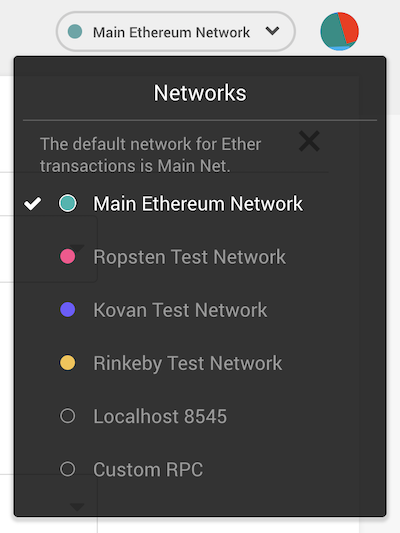
Now we need to indicate to MetaMask to use the local blockchain by Ganache. Click the menu that shows “Main Network” and select Custom RPC or Add Network.
When you select the Custome RPC, the following window will pop up:
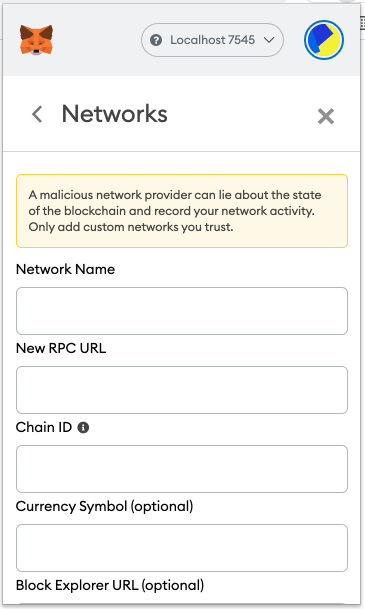
You can use any name you preferred as the Network Name. Next, set the following values in the next two boxes.
New RPC URL -
http://127.0.0.1:7545Chain ID -
1337
You can leave the next two optional fields empty and click Save. The network name will now switch to your new Network Name.
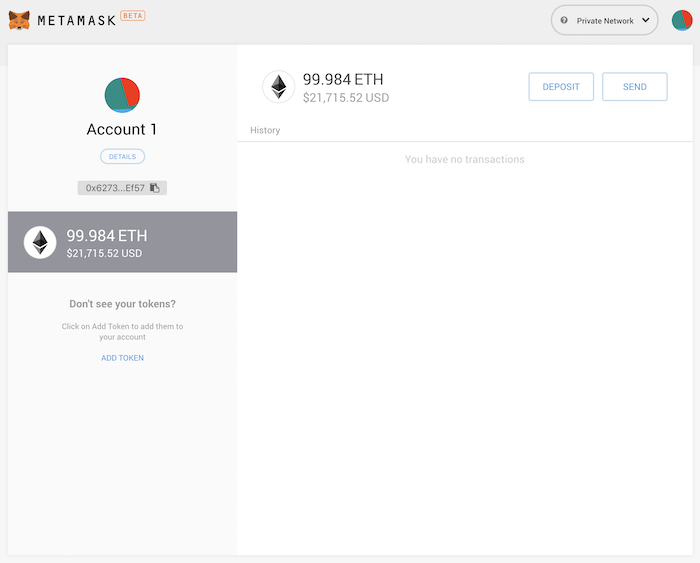
Now that we’ve linked up MetaMask to Ganache, you will be taken to the accounts screen. You wil notice that the account address of Account 1 is the same as the first account in Ganache. The first account should have less than 100 ether because this account supplies the gas for smart contract deployment. Since you’ve deployed your smart contract to the network, this account paid for it.
Click the account icon in the upper-right corner to import the remaining 9 accounts from Ganache. You can also give these accounts meaningful names, rather than Account 1, Account 2, …, etc.